1. Getting started
Installing the app
- The app can be installed directly from your browser — no app store needed
- On mobile: tap the browser menu and select "Add to Home Screen"
- On desktop: look for the install icon in the address bar
- Once installed, it opens like a native app with no browser chrome
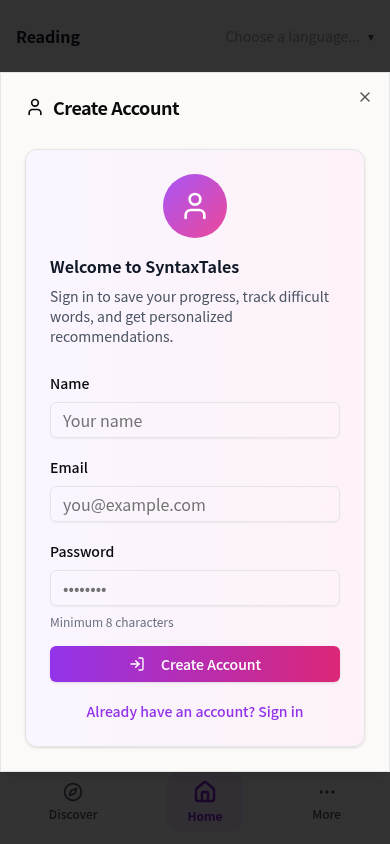
Creating an account
- Open the app and tap More → Log in
- Tap "Need an account? Sign up"
- Enter your name, email, and a password (minimum 8 characters)
- You're automatically logged in after registering
Setting your language
- From the Home screen, tap the language selector in the top right
- Choose your target language
- Everything in the app — stories, Discover feed — filters to that language
2. Home — your reading pile
What the pile is
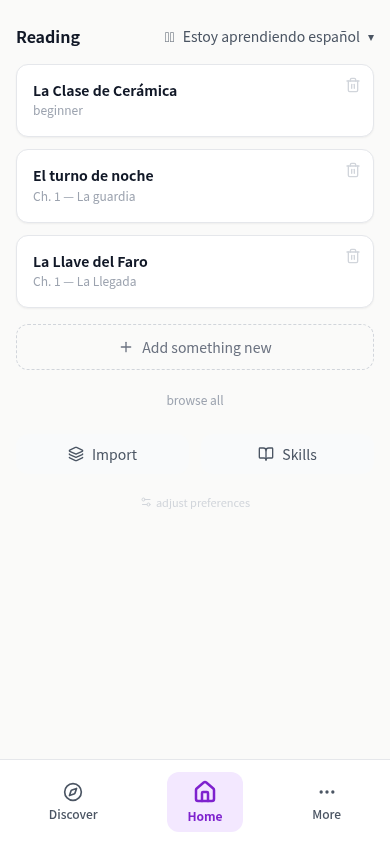
The pile is your personal reading list — stories you've chosen to read. It lives on the Home screen. No order, no urgency — it's just what's available to you when you sit down to read.
The pile spans all your languages — it's one pile, not one per language.
Adding to your pile
Two routes in:
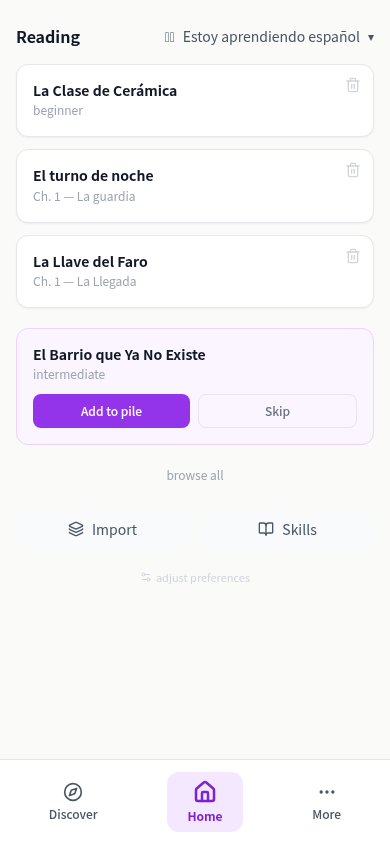
- From Home: tap "Add something new" — the app suggests a story in your target language. Tap "Add to pile" to add it directly, or "Skip" for another.
- From Discover: browse the full library, save candidates to your basket, then check them out to your pile when you're ready. See §3 Discover for the full flow.
Opening a story
Tap any card in the pile to open it in the reader.
Removing a story
Tap the trash icon on a pile card to remove it. This doesn't delete the story — it just removes it from your pile. You can always find it again in Discover.
Stories and series
- A story is a standalone text — complete in one sitting or across return visits
- A series is a multi-chapter narrative — each chapter is its own reading session, with a continuous story running across them
- Both appear in Discover and can be added to your basket and pile the same way
- In the reader, series show chapter bars in the SpineNav rather than page bars — tap a chapter bar to jump to that chapter

3. Discover — finding stories
Two tabs
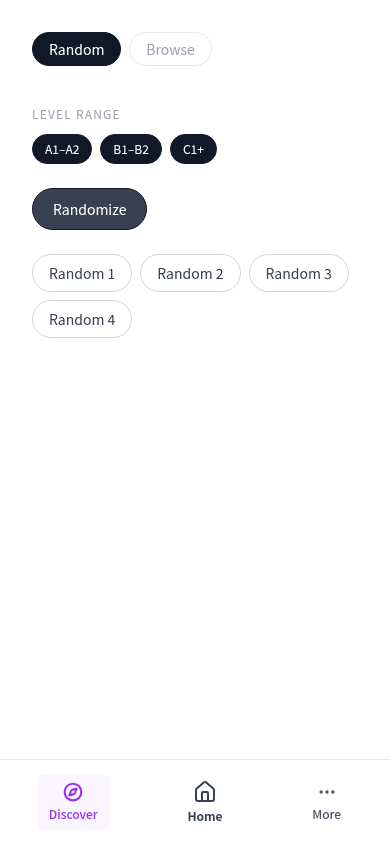
Random
Mystery boxes, each hiding a pre-picked story. Tap a box to go straight to that story — no title or preview shown first. Pick a level range (A1–A2, B1–B2, C1+) to filter suggestions; at least one must stay active. Each new press of "Randomize" adds another box.
Browse
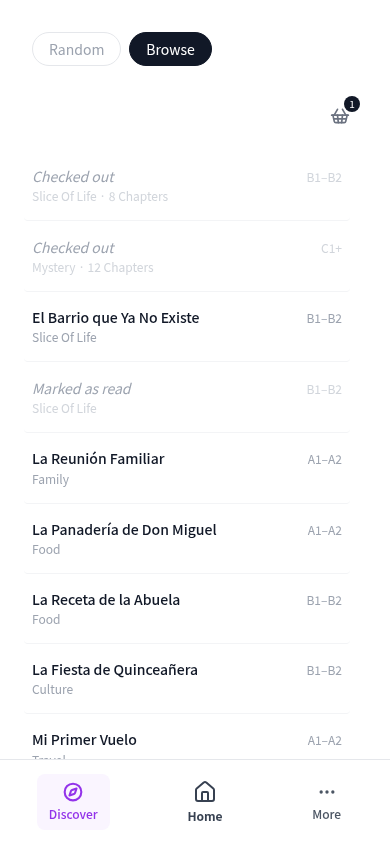
A paginated list of all stories and series, 10 rows per page. Title on the left, CEFR level on the right, category and chapter count below. Series appear as one row — tap to see chapter details and your progress.
Story popup
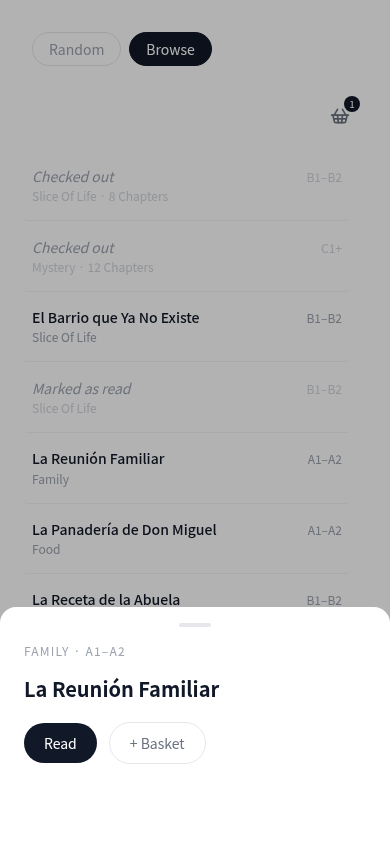
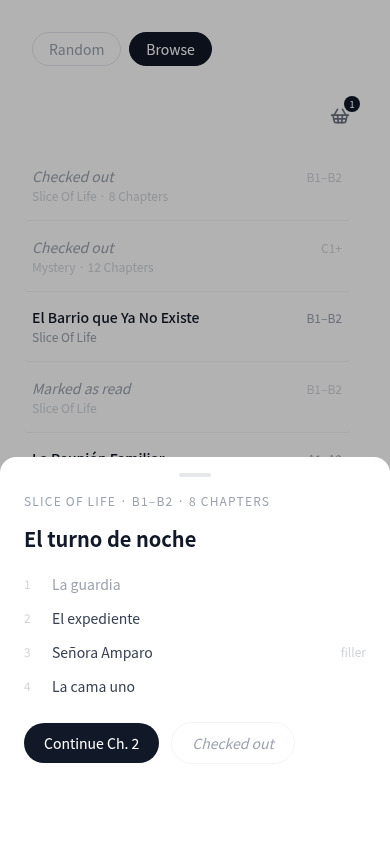
Tap any row in Browse to open a details card at the bottom of the screen.
- Standalone story — title, category, level, a taste sentence with English translation, and a Read button
- Series — title, level, chapter count, and either Start (no progress yet) or Continue Ch. N (picks up where you left off). Chapters are listed below; chapters before your continue point are greyed.
The basket → pile flow
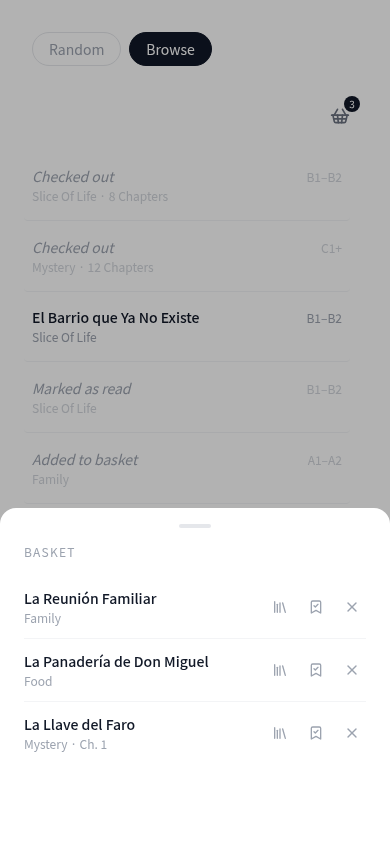
The basket is a staging area between browsing and committing to read something. It works like a library checkout — basket is consideration, pile is commitment.
- 1 In Browse, tap any row to open its story card, then tap + Basket. The row immediately shows "Added to basket" so you don't flag the same story twice.
- 2 Tap the basket icon (top right of Browse) to review everything you've saved.
- 3 Tap the library icon next to any item to check it out — it moves to your pile on the Home screen and the Browse row updates to "Checked out."
You can also mark something as read from the basket (if you've already read it elsewhere) or remove it to clear it entirely.
Browse row states
Rows reflect their state in the list (greyed when actioned). All rows still tap to open the popup for management.
Dot density strip
The strip above the page numbers shows how many available stories are on each page — one column of dots per page, proportional to stories not yet in your basket or pile. Current page is dark, others dimmed. A quick visual of where the unexplored content is.
4. The reader
Skeleton levels
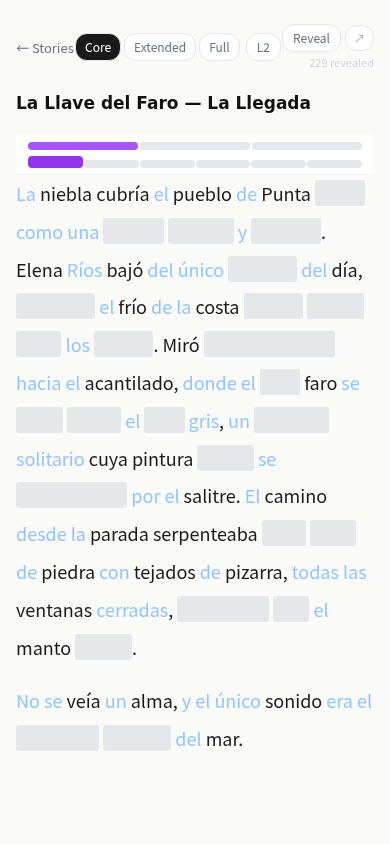
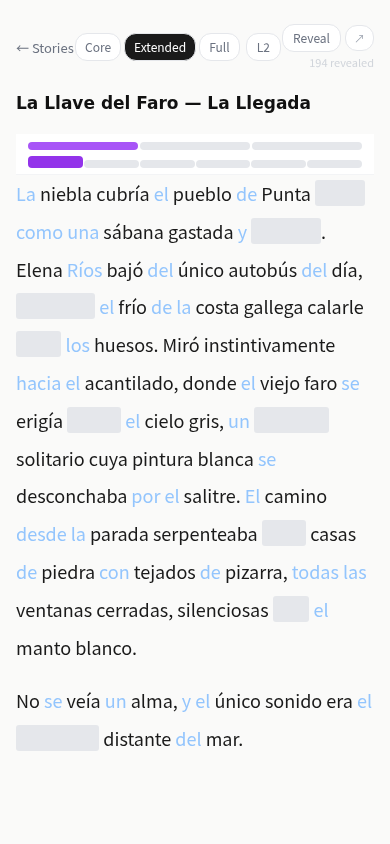
Three levels control how much of the text is visible by default: Core, Extended, Full.
- Core — shows only the structural skeleton: subjects, main verbs, objects, auxiliaries, negation. Everything else is a grey blank.
- Extended — adds modifiers: adjectives, adverbs, clauses.
- Full — shows all words.
The level is a dial, not a progression. Set it to where most words are familiar to you.
The reveal mechanic
- Hidden words appear as grey blanks
- Tap a blank to reveal all instances of that word's lemma across the page — they turn light blue
- Tap a revealed word to re-hide it
- Reveals persist across sessions — return to a story and your revealed words are still blue
- The blue density is a real-time picture of your relationship with that text
The toolbar
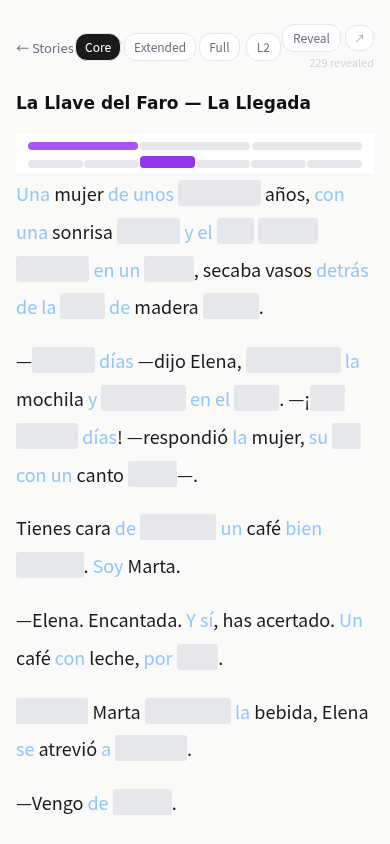
The toolbar gives access to all reader controls — skeleton level, reading mode, woven, and lookup.

Reading modes
Cycle through modes using the mode button in the toolbar.
Reveal
The default. Tap hidden words to reveal them. The full reveal mechanic is active.
Skim
Read-only. Pointer events disabled. For moving through text without interaction.
Wave
The text itself is the seek bar. Drag your finger (or cursor) across the words — the word under your finger gets a green outline as you move. Release to play audio from 2 words before that word (the run-up gives context before the target). On touch, you can also tap a word directly without dragging.
If audio is playing, tap any word to stop it — a small green ▶ appears at the start of the sentence that was playing. Tap it to resume from there. The ▶ button in the toolbar starts playback from the top of the page. A seek bar below the text lets you jump to any position.
Wave lets you navigate audio by feel. The text is the seek bar — instead of sliding a timeline, you move through the words themselves. Where you are in the audio and where you are in the text stay in sync, so you can find a passage by scanning for it rather than guessing a position on a bar.
Woven mode
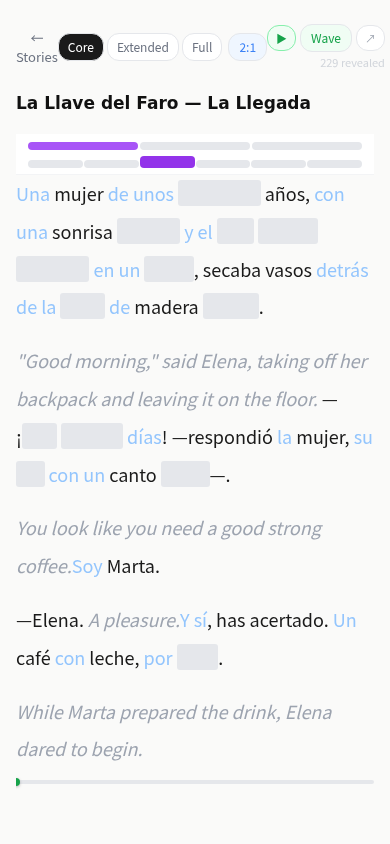
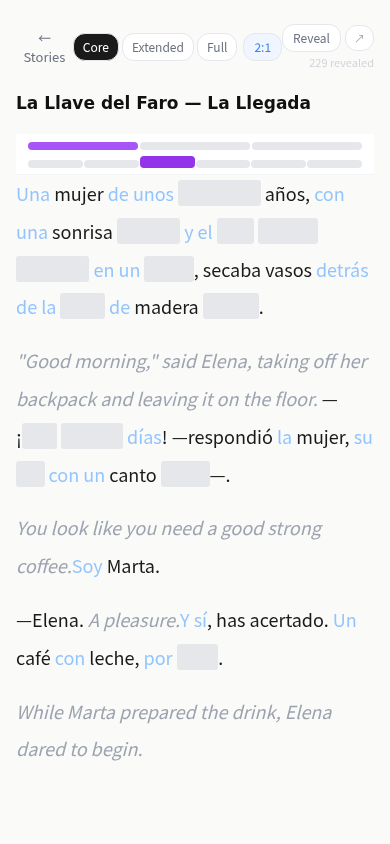
- The cycle button interleaves translation sentences with the target language text
- Cycle through ratios: L2 only → 2:1 (two target sentences per translation) → 1:1 → 1:2 → back to L2 only
- Translation sentences appear in grey italic between paragraphs
- Woven mode is independent of skeleton level and reading mode — stack them freely
Listening without subvocalizing
When audio plays while you read, try not to subvocalize — silently pronouncing the words in your head as you read.
Subvocalizing while the audio plays creates two competing voices. More importantly: if you're not yet confident in the language's pronunciation, your subvocalization will reinforce inaccurate approximations, not the correct sounds.
Instead, let your eyes follow the text and let the audio carry the sound — read visually, listen receptively.
Navigation — SpineNav
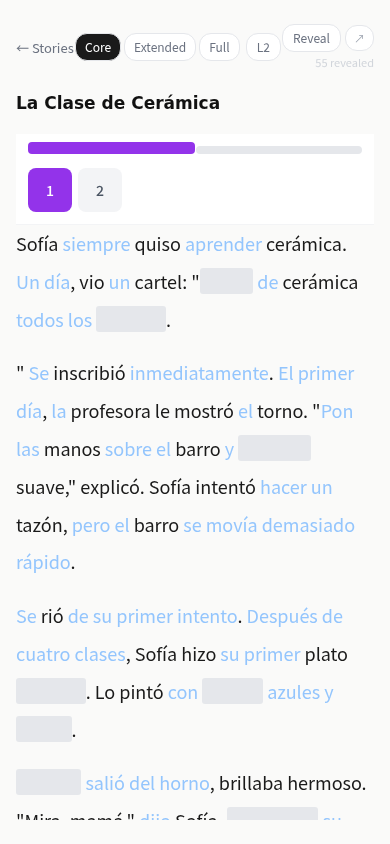
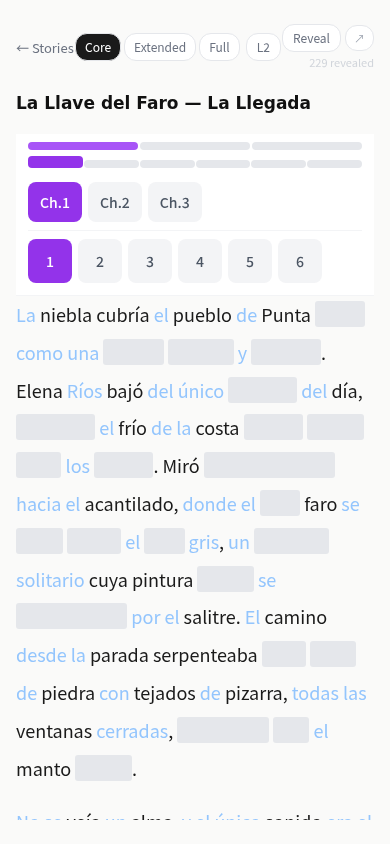
- The spine runs along the top of the reader as a row of bars, one per page (or chapter for series)
- Tap any bar to jump directly to that page
- Unlike left/right buttons, the SpineNav gives you a spatial map of the whole text at a glance — over time you develop an intuitive sense of where things are, the same way you find your place in a physical book
- The strip between the SpineNav and the first line of text is a special zone — swipe it to play audio from the very beginning of the page
- For series: bars represent chapters rather than pages; tap a chapter bar to jump to that chapter
Navigating through feel
Move through the text with physical and spatial intuition — letting your pointer drift along words, revealing and hiding as attention draws you, navigating the spine by feel rather than decision. When the physical gesture and the reading attention are in sync, you're not interrupted by the interface.
When you stop to reason — should I reveal this, should I seek back — you've stepped out of the flow and into a metacognitive loop. That costs time and attention that could have been processing the language. Thought introduces latency; intuition keeps you in the mode where acquisition actually happens.
5. Configuring the reader for your level
Finding your n+1
n+1 means: almost everything is known, with just one or a few unknown words per passage.
The skeleton level you choose should get you as close to n+1 as possible for this specific text. If Core still has too many unknowns, don't force reveal on first pass — let it sit, use woven for scaffolding, listen for the sound. If you know more than Core shows, move to Extended or Full.
Choosing your skeleton level
If you're a beginner with little vocabulary in the target language, start at Core. It's the minimum structural signal and the right starting point before calibration makes sense.
If you already have some footing, calibrate by process of elimination:
- Start at Full. Too much unknown? Drop to Extended.
- Extended still too dense? Drop to Core.
The right level is the floor where the sentence still makes sense to you.
Reveal as absorption, not gap-filling
Reveal mode isn't about systematically filling in every blank. It's about expanding your understanding of the text as you feel ready to absorb new words.
The readiness is felt, not calculated — when something catches your attention, that's the moment to reveal. Don't reveal everything; reveal what you're drawn to.
Hiding words
Revealed state isn't permanent. A word you understood in one sentence may not land in another — the surrounding context is different, and readiness is context-dependent. Re-hiding is honest; it keeps the page reflecting your actual relationship with the text in that moment.
A practical example: Core words are always visible and can't be hidden. If a sentence already has an unknown Core word, keeping a revealed word visible too pushes you past n+1. Re-hiding the revealed word brings you back to a manageable +1 — the Core unknown becomes the one thing you're working with.
Hide and reveal and hide again as feels appropriate. This is the nature of reveal mode.
Stacking modes
The controls serve different purposes and can all be active simultaneously:
- Skeleton level — sets your comprehension baseline
- Woven — reduces cognitive load when meaning is thin; can be on at any level
- Reveal — used actively when you're near n+1 and feel traction
- Wave mode — builds sound-text association; lets pattern recognition work subconsciously, independent of comprehension level
6. The learning approach
Only the present moment
You can't influence the future — only the present moment. The intention isn't to reach fluency or hit a milestone. It's to stretch into what's reachable right now, at the edge of your current understanding.
Showing up is enough
That boundary moves on its own, as a consequence of showing up. Each session is contact with the language at whatever your current edge is. That's enough.
What a session is for
While you're reading, the measure isn't how many words you revealed or how far you got — it's whether your attention is with the text. Revealing, listening, navigating: these are the engagement, not indicators of it. Be in it rather than watching it. The acquisition happens underneath regardless.
7. Looking up words
Word lookup is not a built-in feature of the app — this is intentional. A dedicated tool gives richer results (full conjugations, example sentences, context) than an inline tooltip would. The options below work alongside the reader without disrupting it.
When to look up
A lookup is a tool, not a commitment. Offer the definition to your existing understanding and see if it lands. If it does, the context was ready and the definition was the nudge it needed. If it doesn't, set it down and keep reading — the word will connect at the right moment. Forcing a definition before your understanding is ready produces something memorized, not known.
Using your browser's built-in translation
On most mobile browsers, tapping and holding a word brings up a text selection handle, with a "Search" or "Translate" option — this is a native browser feature. Highlight the word, then tap the search/translate option to look it up without leaving the reader. On desktop, most browsers have right-click → Translate or a built-in translation toolbar.
Google Translate extension (Chrome desktop)
The Google Translate Chrome extension works directly in the reader — hover over a word or select text and the translation popup appears inline. Install it from the Chrome Web Store.
Android — Lookup Mode
On Android, the reader's touch behaviour intercepts taps for reveal, which conflicts with native text selection.
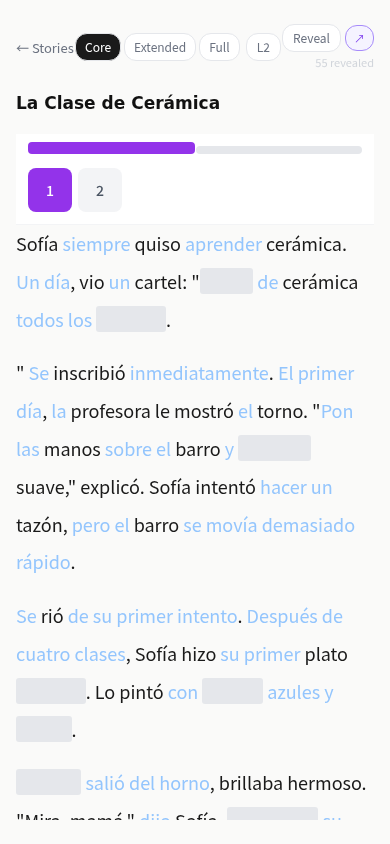
To look up a word on Android: tap the lookup button (↗) in the toolbar to enter Lookup Mode — the icon turns purple when active. In Lookup Mode, native text selection is restored. On Chrome Android, a single tap selects a word directly — no hold needed. On other browsers, tap and hold to select. Use the browser's translate feature as normal, then tap the button again to exit.
8. The bigger picture
No scores, no gates
There are no readiness scores, no completion requirements, no levels to unlock. You can open any story at any time. Some passages will catch, some won't — that's normal and unmanageable.
Re-reading accumulates
Blue reveals persist across sessions. Return to a story and the words you revealed before are still there. The density of blue is a felt record of your contact with that text, not a metric.
Each session is complete in itself
You don't need to finish a story in one sitting. You don't need to reveal every word before moving on. Whatever happened during a session was real contact with the language — that's the whole point.
9. Using these ideas outside the app
Finding content at your level
n+1 applies before you even start reading — it's the principle behind choosing what to engage with. The "n" is everything you can follow well enough to stay oriented; the "+1" is the friction at the edges. Find material where most is comprehensible — shows you already know in your native language, graded readers, topics you understand well. Too easy and there's no +1 to work with. Too dense and there's no n to anchor to.
One unknown at a time
n+1 also applies within a sentence. When several words are unknown, you can't absorb all of them at once — the "n" is the rest of the sentence, and there's only room for one +1. Look for the word the surrounding context is pointing toward most strongly — the one with the best shot at landing given what the sentence has already made clear. When it clicks, move on. When nothing surfaces, skip the sentence and keep going.
Presence over progress
When watching or listening in your target language, the temptation is to optimise — pausing to look up every missed word, keeping score of how much you understood, measuring your session length. None of that contributes to acquisition, and the pressure to perform can bring anxiety that actively hinders it. Missed words and unclear passages are just where your level is right now. Stay engaged with what you can follow and let the rest go. The processing that builds the skill happens from that engagement, not from tracking it.
Listening
Choose content where you can follow enough to stay engaged, and let it run. Early on, keep subvocalization minimal — let the correct sounds get internalized rather than your own approximations. You can't calibrate against a sound bank you haven't built yet.